RoboRIO
The RoboRIO was the robot controller for FRC robots from 2015 to 2026. The RoboRIO has 2 variants, aptly named the RoboRIO 1.0 and the RoboRIO 2.0. The RoboRIO 1.0 was the original RoboRIO introduced in 2015, but as robot code became more involved into the 2020s, the RoboRIO 1.0 began to struggle to keep up with the higher processing and memory load as teams began to run more intensive code.
In response to this, National Instruments released the RoboRIO 2.0 in 2022 which featured more memory and CPU to keep up with advanced FRC software needs.
Hover over each feature to see what it does. Click on a feature to see more relevant information!
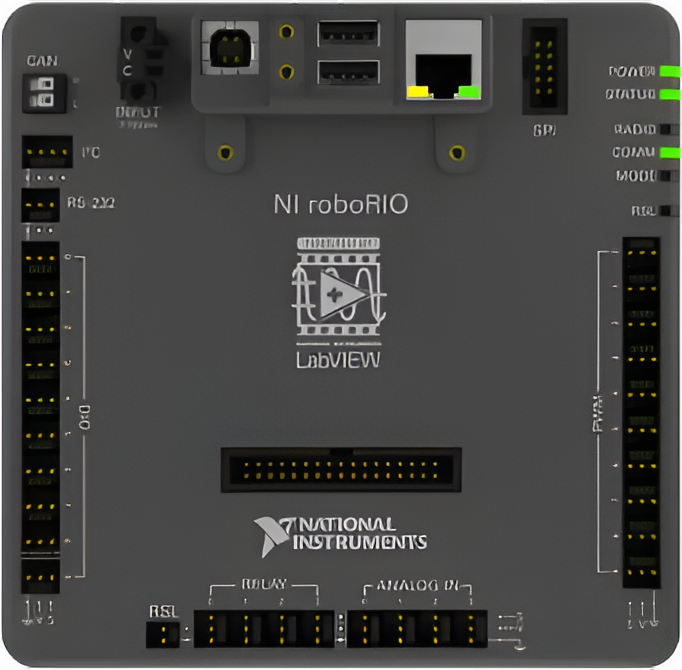
For more information about communication protocols see COMMUNICATION_PROTOCOLS
Tips, Tricks, and Documentation
Imaging
The RoboRIO imaging documentation is located here:
RoboRIO 1: https://docs.wpilib.org/en/stable/docs/zero-to-robot/step-3/imaging-your-roborio.html
RoboRIO 2: https://docs.wpilib.org/en/stable/docs/zero-to-robot/step-3/roborio2-imaging.html
RoboRIO 1 Crashes
Modern FRC software projects use a lot of memory and CPU, which can cause the RoboRIO 1 to crash. Here are a few ways to mitigate crashes
Web Server
Do not do perform this optimization unless you have already set your RoboRIO's static IP address and any comments.
The RoboRIO runs a web server to set things like network settings. This uses a lot of memory, which can cause the RoboRIO 1.0 to crash. After initial setup, you can use the RoboRIO team number setter utility to disable the RoboRIO web server:
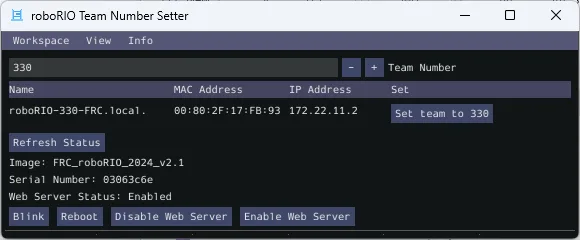
https://docs.wpilib.org/en/stable/docs/software/wpilib-tools/roborio-team-number-setter/index.html
LVRT
There is a script on the RoboRIO called LVRT, which calls is responsible for starting a script called frcRunRobot.sh. The built-in LVRT script is known to use a lot of the RoboRIO's CPU, so a custom script was developed that uses fewer resources. Here are the steps to install it:
- SSH into the RoboRIO: https://docs.wpilib.org/en/stable/docs/software/roborio-info/roborio-ssh.html#ssh
- Replace /etc/init.d/lvrt with the following script:
#!/bin/sh
APP_PATH=`nirtcfg --file /etc/natinst/share/lvrt.conf --get section=LVRT,token=RTTarget.ApplicationPath`
if [ "$APP_PATH" != /home/lvuser/natinst/bin/TBLStartupApp.rtexe ]
then
  exec -a lvrt ./ni-lvrt
fi
APP_BOOT=`nirtcfg --file /etc/natinst/share/lvrt.conf --get section=LVRT,token=RTTarget.LaunchAppAtBoot,value=true | tr "[:upper:]" "[:lower:]"`
APP_DISABLED=`nirtcfg --get section=SYSTEMSETTINGS,token=NoApp.enabled,value=false | tr "[:upper:]" "[:lower:]"`
if [ "$APP_BOOT" = true ] && [ "$APP_DISABLED" = false ]
then
  . /usr/local/frc/bin/frcRunRobot.sh 2>&1 >/dev/null
fi
sleep 1